 Graph and PowerShell Blog
For many of the scripts that I write, there is a need to export the data to a spreadsheet. The excellent ImportExcel PowerShell module allows me to export data to Excel easily, but some of the extra formatting can be challenging. One such issue is where you have multiple lines within one cell, for example you want to list all of the software on a computer, but want to keep it all in one row.
To fomat this we need to first make a change in the cell text:
$string = "$value1`n$value2`n$value3
# The `n will result in a newline with the correct formatting.
# The `n will result in a newline with the correct formatting.
This alone will not fix the problem, we need to apply the following conditional formatting after the Excel file has been generated:
$excelpkg = | exportExcel -path c:\scripts\software.xlsx -worksheetname "software" -passThru
Set-ExcelRange -worksheet $excelpkg.software -range "b:c" -WrapText # All of columns B and C will have WrapText applied.
Set-ExcelRange -worksheet $excelpkg.software -range "a:c" -VerticalAlignment top # We want all values to be displayed at the top of cell
Set-ExcelRange -worksheet $excelpkg.software -range "b:c" -WrapText # All of columns B and C will have WrapText applied.
Set-ExcelRange -worksheet $excelpkg.software -range "a:c" -VerticalAlignment top # We want all values to be displayed at the top of cell
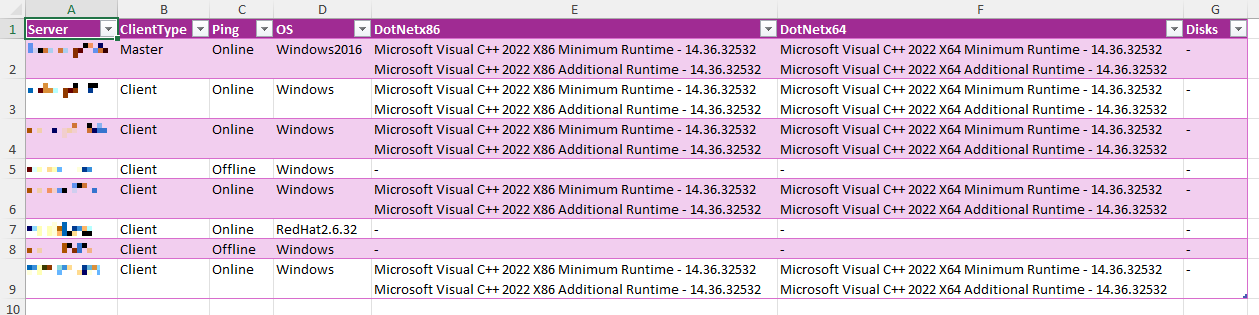
↑ Multiple lines per cell and text aligned to top. The purple colour is due to Microsoft making a change in Excel.